KAUF! Tutorial: Master Your Family’s Grocery Synchronization Easily and Efficiently
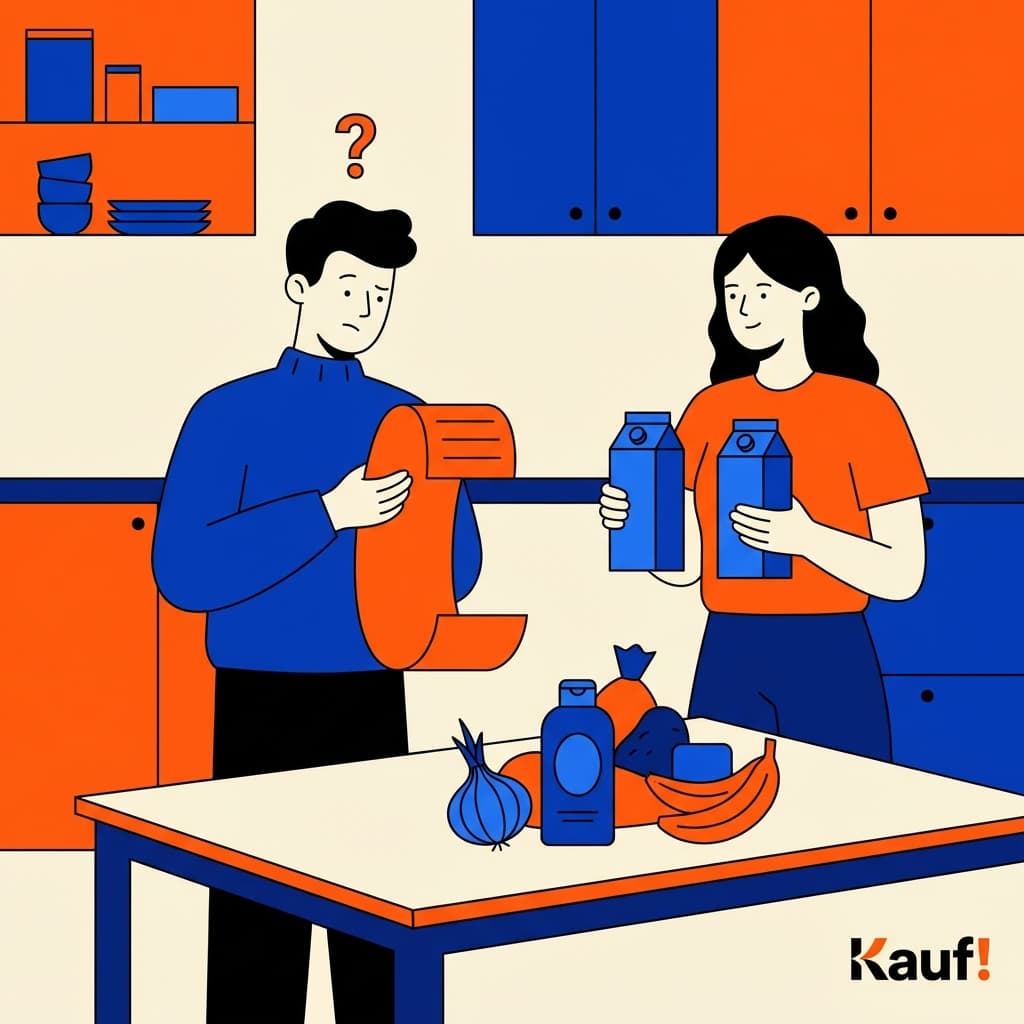
Kaufen is an advanced shopping list application designed to unite families in managing their grocery needs while minimizing conflicts over misplaced or duplicate items. This tutorial will walk you through the essential steps for using KAUF! effectively, ensuring your family stays perfectly organized.
Getting Started: What Is KAUF! And Why Use It?
Before we dive into using the application itself, let’s establish why KAUF! is a game-changer in shared grocery list management. By integrating real-time syncing and recipe sharing features, it ensures that all family members are on the same page about food purchases without any overlaps or disagreements.
What Makes KAUF! Different?
- Real-Time Syncing: Whether you’re at home or commuting, every member of your household can update the list in real-time without conflicting changes.
- Shared Recipes: No more duplicate entries by adding similar dishes multiple times. Recipes are shared across devices, making meal planning a breeze.
- Offline/Online Flexibility: KAUF! works just as well whether you’re using it on your phone or laptop, providing the freedom to shop whenever and wherever.
Setting Up Your Profile and Adding Family Members
Step 1: Downloading and Installing KAUF!
Download and install the app from the App Store for iPhones/iPads or Google Play Store if you have an Android device. Once installed, open it to begin setting up your profile.
Step 2: Creating a New Profile
Set up a new account and personalize your profile with basic information such as name, birthday (optional), and preferred languages. This step is important for tailoring personalized features within the app.
Step 3: Inviting Family Members
Use the share function to invite other family members. They will receive a notification on their device, allowing them to join your account once they install it and accept the invitation. Ensure all profiles have unique access codes to maintain security and privacy settings.
Using KAUF! for Daily Planning
Step 4: Adding Grocery Items to Your List
Navigate to the main screen where you will see categories like dairy, produce, snacks, etc. Tap on a category to add specific items or create custom ones if needed.
Step 5: Organizing with Lists and Sublists
Create different lists for various purposes such as weekly shopping, party planning, or specific dietary requirements (e.g., vegetarian, vegan). This will help you keep track of multiple tasks without confusion.
Step 6: Sharing Recipes Among Family Members
Tap on the recipe section where your family members can contribute and share their favorite meals. These shared recipes automatically sync across all devices to ensure everyone has access.
Step 7: Real-Time Updates and Conflicts Handling
As you or any other member update items, new changes are instantly reflected in real-time. The app detects conflicts and alerts users when multiple deletions occur simultaneously. Conflicts can be resolved by discussing the item with other users directly through text chat within the app.
Troubleshooting Common Issues and FAQs
Issue 1: Unable to Sync Across Devices
Question: Why do I sometimes see older versions of my list? Answer: Ensure both devices are connected to a network or using mobile data and try clearing cache/data for KAUF! on those devices. If issues persist, contact support.
Issue 2: My Family Member Invites Are Expired or Stuck
Question: How do I handle declined invitations from family members? Answer: Re-send the invite link through email or messaging and explain how easy it is to set up once installed. Encourage them to join immediately for seamless family planning.
Issue 3: Losing Access to Our List
Question: What should I do if my account information gets lost? Answer: Visit your profile settings where you can reset passwords or register a new account by logging back into the application with alternative devices. Important data is stored securely, so no worries about losing past entries.
PREGUNTAS FRECUENTES
Q1: How do I get started with KAUF!?
Q2: Are recipes shared automatically or manually added?
A2: Recipes are typically shared manually from one device to another. The app provides tools for this but encourages active participation from all users.
and experience stress-free grocery shopping with your family!